

Scratch Pad
Capture rough thoughts, organise them with tags, connect ideas in a graph, and reuse them in Cortex workflows.
Scratch Pad
Scratch Pad is your personal, client-scoped working space for capturing rough thoughts and turning them into reusable assets.
It is a floating utility window you open from the main header. Next to the bug feature link, you will see the Scratch Pad icon.
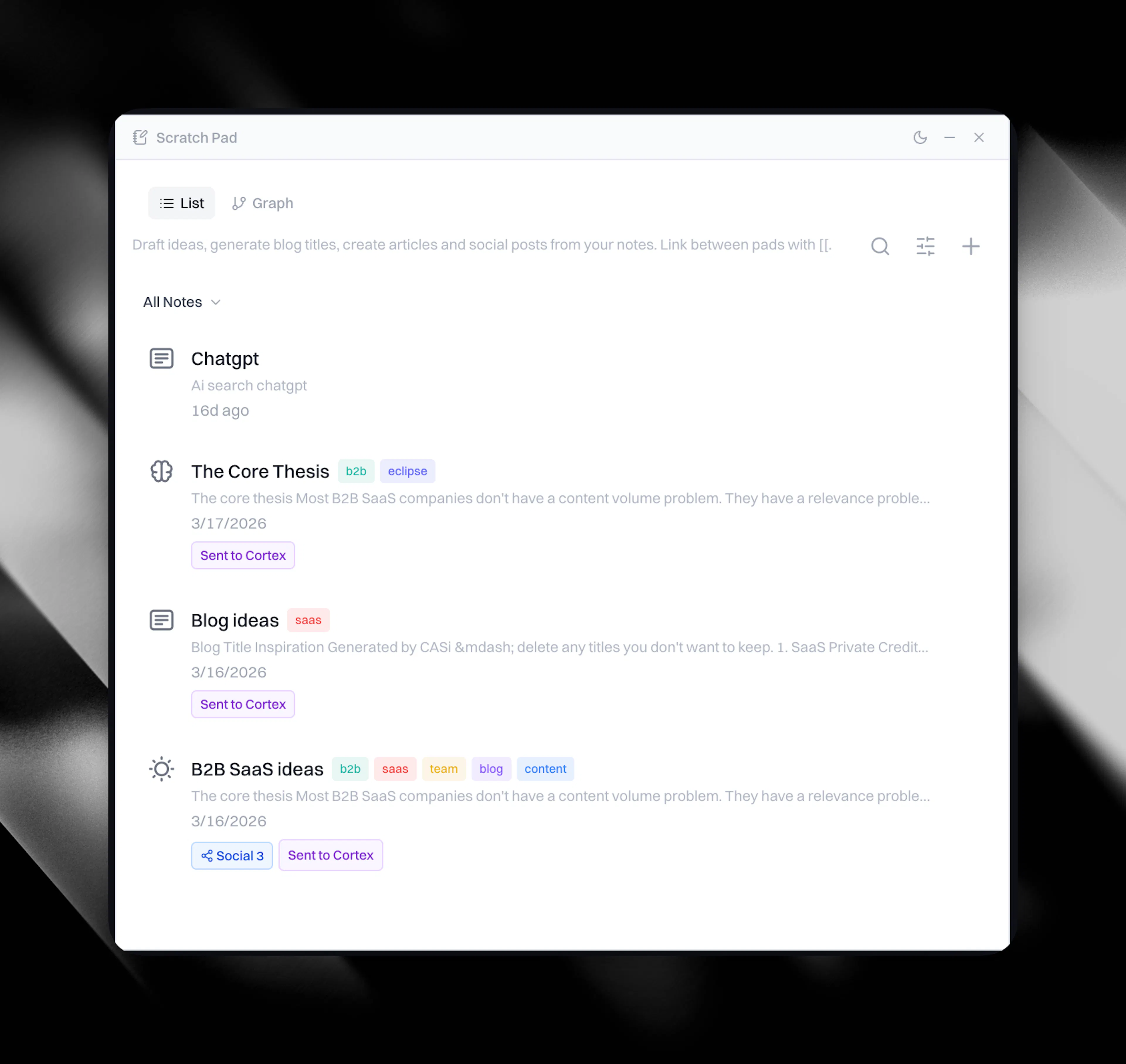
Two ways to view your knowledge graph
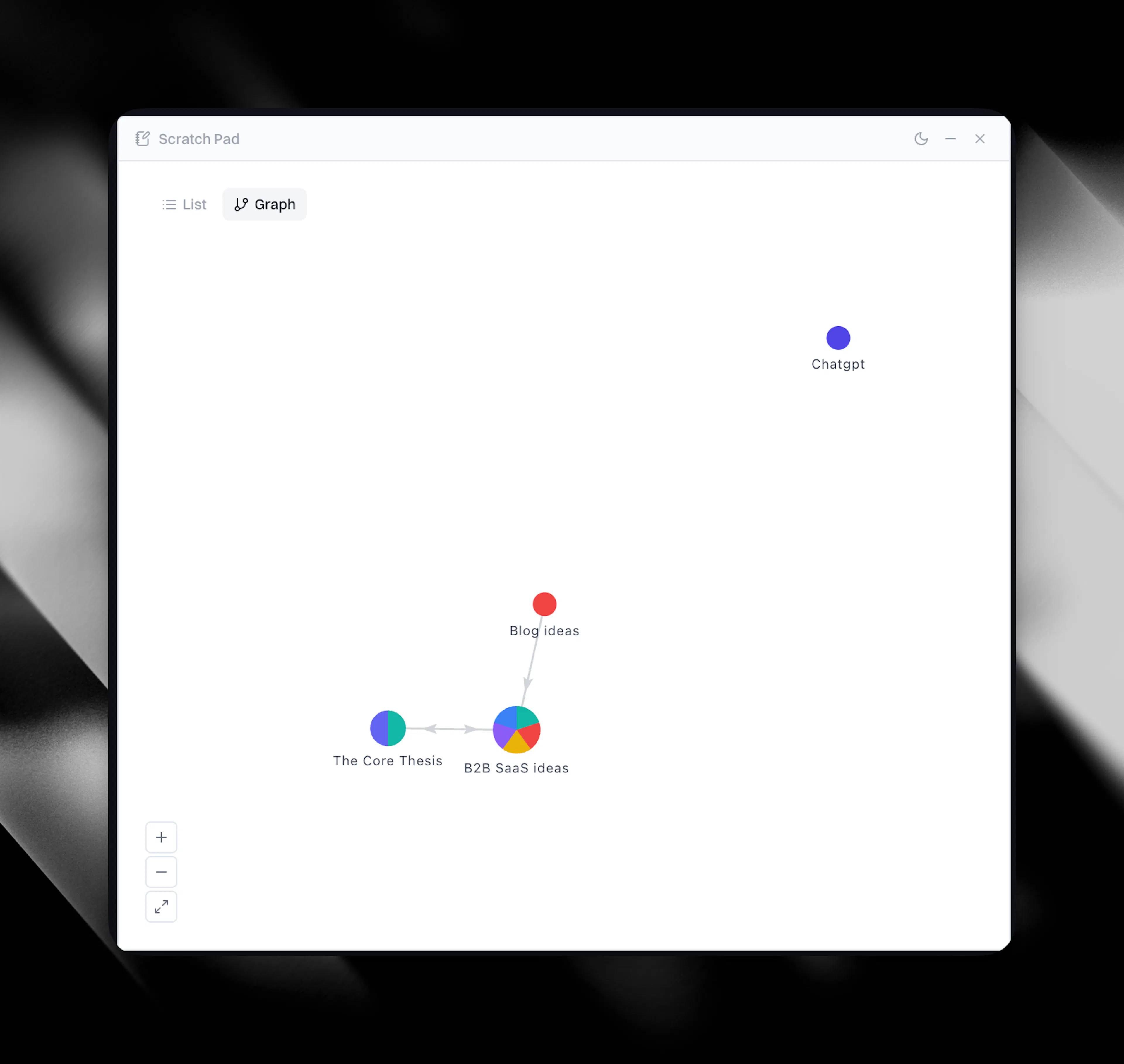
Scratch Pad helps you visualise how ideas connect.
-
List view. A traditional list of your pads.
-
Graph view. A movable knowledge graph. Click through it to open notes or pads, then rearrange the whole view to understand what you have been thinking and working on, as one connected system. The colours are aligned with the tags you choose to organise your pads.
Capture and organise
Each pad is a lightweight note record with:
-
a title and body
-
an icon
-
status flags and timestamps
-
tags
-
links to other pads
Pads sit inside your client workspace. That means your content stays organised per client, and it is scoped to you within that workspace.
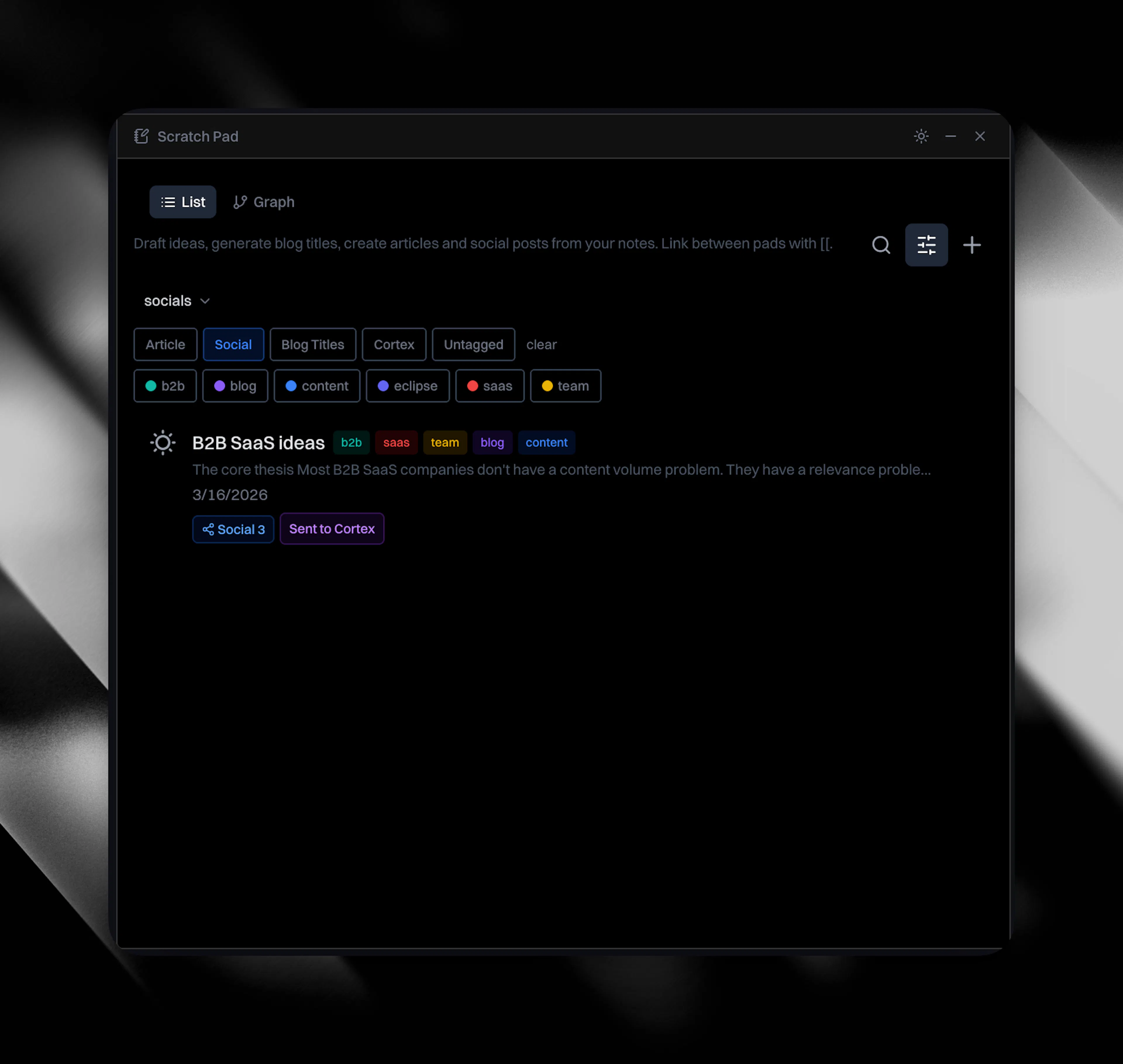
Saved views
You create a saved view by:
-
Filtering by tags
-
Pressing Save view
Later, you can jump back to that view by selecting it.
Reuse downstream in Cortex
Scratch Pad does not just help you write. It also sends your pads into Cortex workflows.
From a pad, you can:
-
Add it into Cortex Canvas via the Scratch Pad search modal
-
Generate social media post drafts
-
Generate an article
-
Generate blog ideas
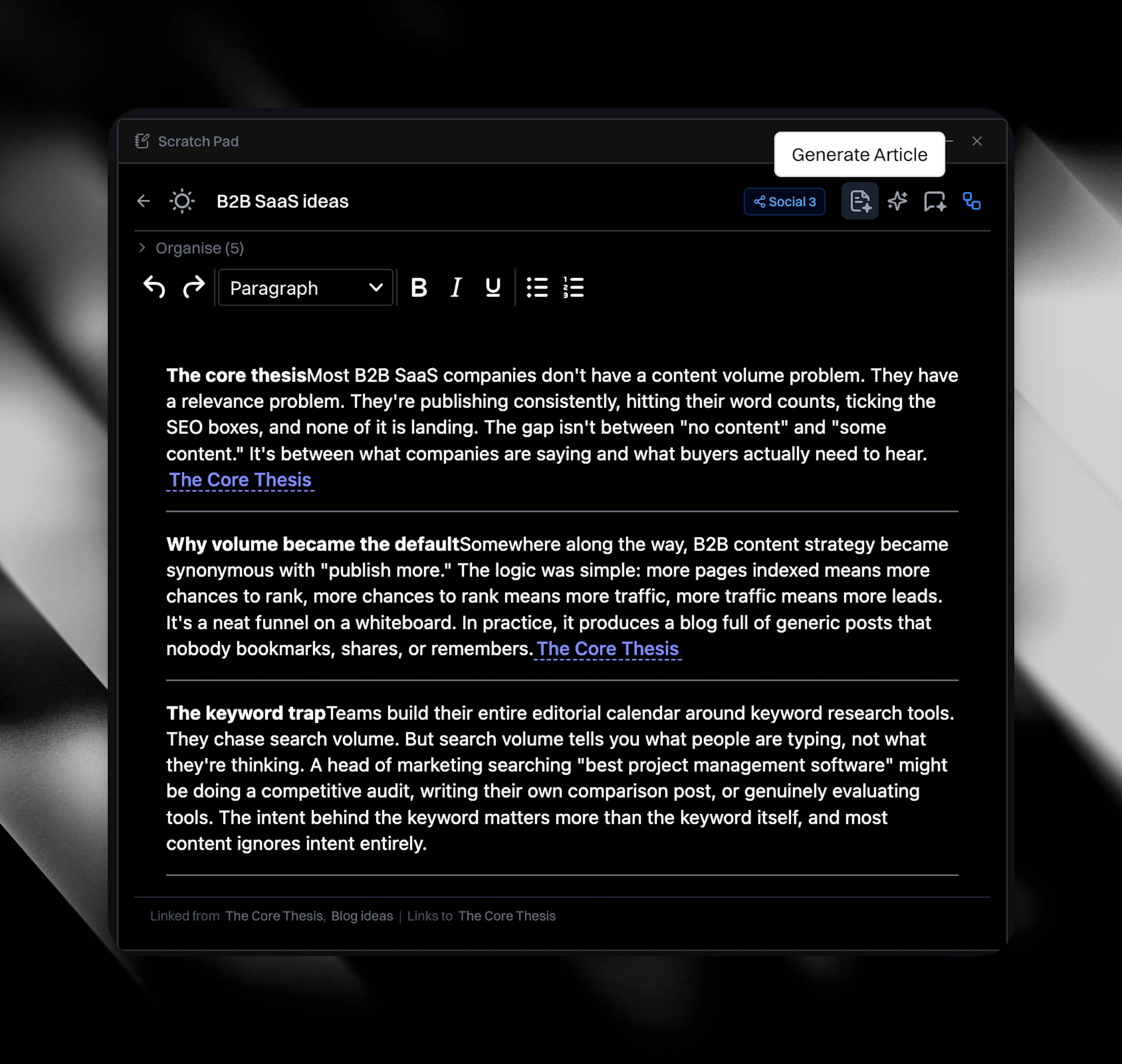
When you run a generation action, you send your pad content to CASi as the source material.
Generating content and social posts from a pad
The flow is the same for both:
- On the pad, click the icon for the type of output you want: content article or social post.
- Choose a Content Profile (for an article) or a Social Profile (for a social post) from the dropdown.
- Add any specific instructions for CASi in the directions box. Optional. Leave it blank if the pad speaks for itself.
- Click Generate.
A content article takes one to two hours and lands in your content table. A social post takes ten to twenty minutes per post and lands in your social media table.
Eclipse emails you when generation completes, and posts an alert to the relevant alerts channel (content or social) if you have set up the Slack integration. The pad retains a reference to the generated output, so you can trace where the idea went next.